Images & opening hours
Add photos and opening hours to a data layer so customers can see them.
After the address, the two things customers look for most are what the store looks like and when it is open. Both are set from a layer's three-dot menu in the Legend.
You need the matching field first
These two features write into a field of the dataset:
- Images → a field of type Images
- Opening hours → a field of type OpenHours
If the right field type does not exist yet, create it first in Managing structure. If the layer has more than one field of the same type, the dialog adds a picker so you can choose which one to write to.
Bulk image upload
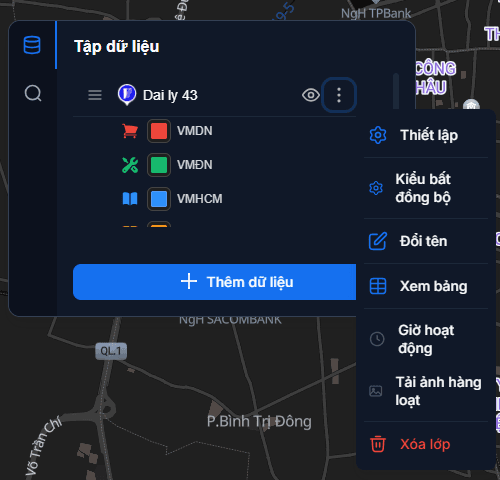
Layer's three-dot menu → Bulk image upload.
- Click the dashed square to choose images — you can select several at once.
- Selected images appear as thumbnails; click the × in a corner to drop one.
- Click Upload — the button shows how many are queued, for example Upload (5).
Images are shared by the whole layer
Images uploaded here are shared across the entire data layer, not assigned to individual stores. For a per-store photo, edit that store's image field directly — see Managing stores.
Setting opening hours
Layer's three-dot menu → Opening hours.
Open 24/7
Flip the Open 24/7 switch and you are done — it applies to every day of the week, around the clock. Nothing else to fill in.
Setting each day
Turn the 24/7 switch off and a row of weekday buttons appears. Pick a day, then choose one of three modes:
| Mode | Meaning |
|---|---|
| Open all day | Open the whole day, no times needed |
| Custom hours | Enter an opening time and a closing time |
| Closed | Closed that day |
With Custom hours you can add several ranges within one day using the Add hours button — useful for stores that close for lunch (say 08:00–12:00 and 13:30–21:00). Each range has its own delete button.
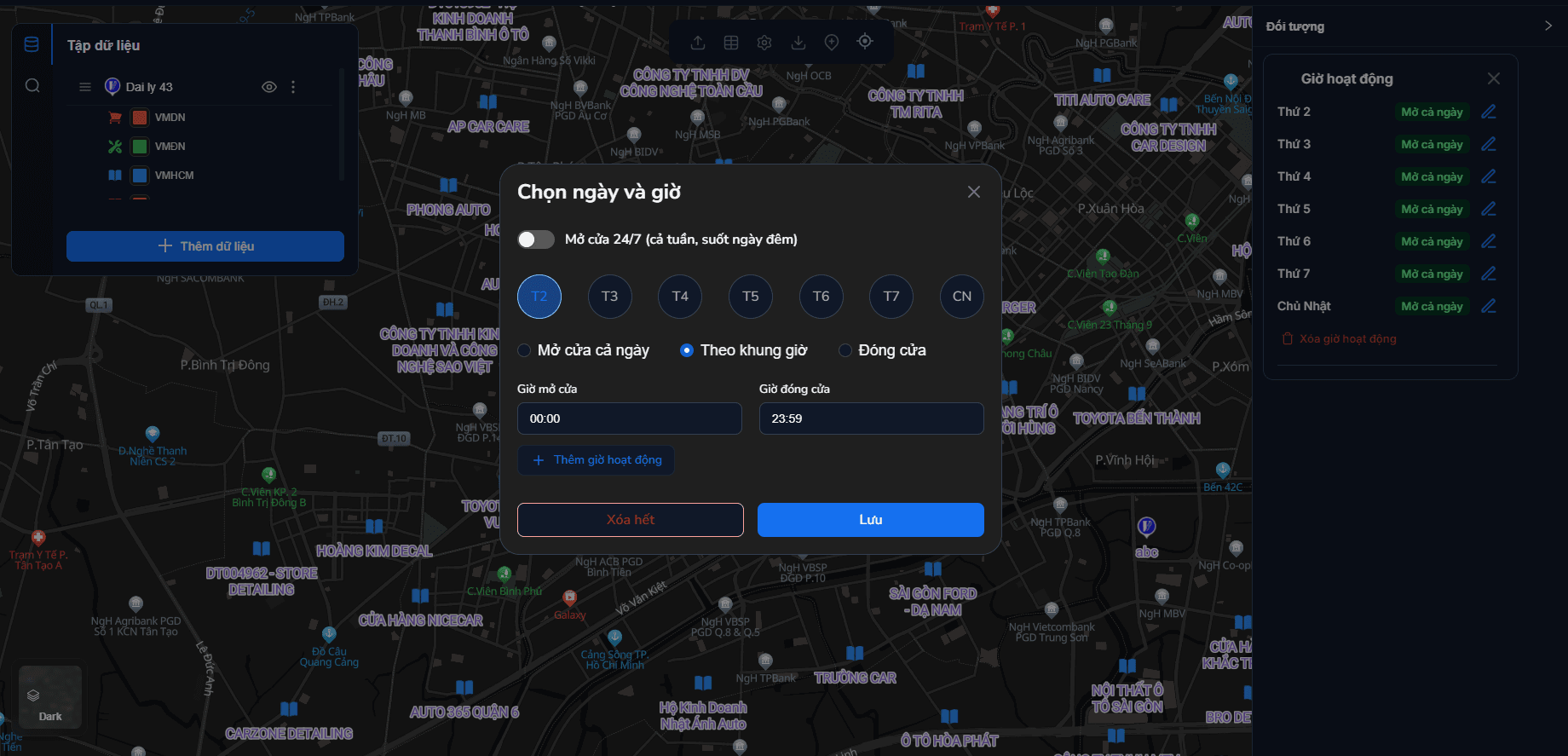
Once every day is set, click Save.
Closing time must be after opening time
The system rejects a range whose closing time is earlier than or equal to its opening time, and flags it right there. If a store trades past midnight, split it into two ranges across two days.
Clearing all opening hours
The same dialog offers a clear opening hours action — it asks for confirmation before wiping every range you have entered.
Saving is enough — no republish
Images and opening hours are store data, not display configuration. Click Save and customers see the update on the published map straight away — no republish needed. See Publishing & sharing for which changes do require one.
Next: Search & directions — help customers find and travel to a store.