Activity log
See who did what and when — and export it to CSV.
The activity log records the important changes in your account: who created a map, who edited data, who published, who granted access. When data suddenly looks different from yesterday, this is the first place to open.
Open it from Activity log in the left navigation bar.
Can't see this entry?
The activity log is a plan feature. If your plan does not include it, the entry does not appear in the navigation bar — contact VietMap Solutions to enable it.
The log table
Each row is one action, with five columns:
| Column | Contents |
|---|---|
| Time | When it happened, as hour:minute day/month/year — shown in your computer's local time |
| Performed by | The user's name, with their avatar or initials |
| Action | What kind of work was done — see the table below |
| Target | What was affected, with its name: Map: Southern store network, Dataset: Stores 2026… |
| Status | Success or Failed |
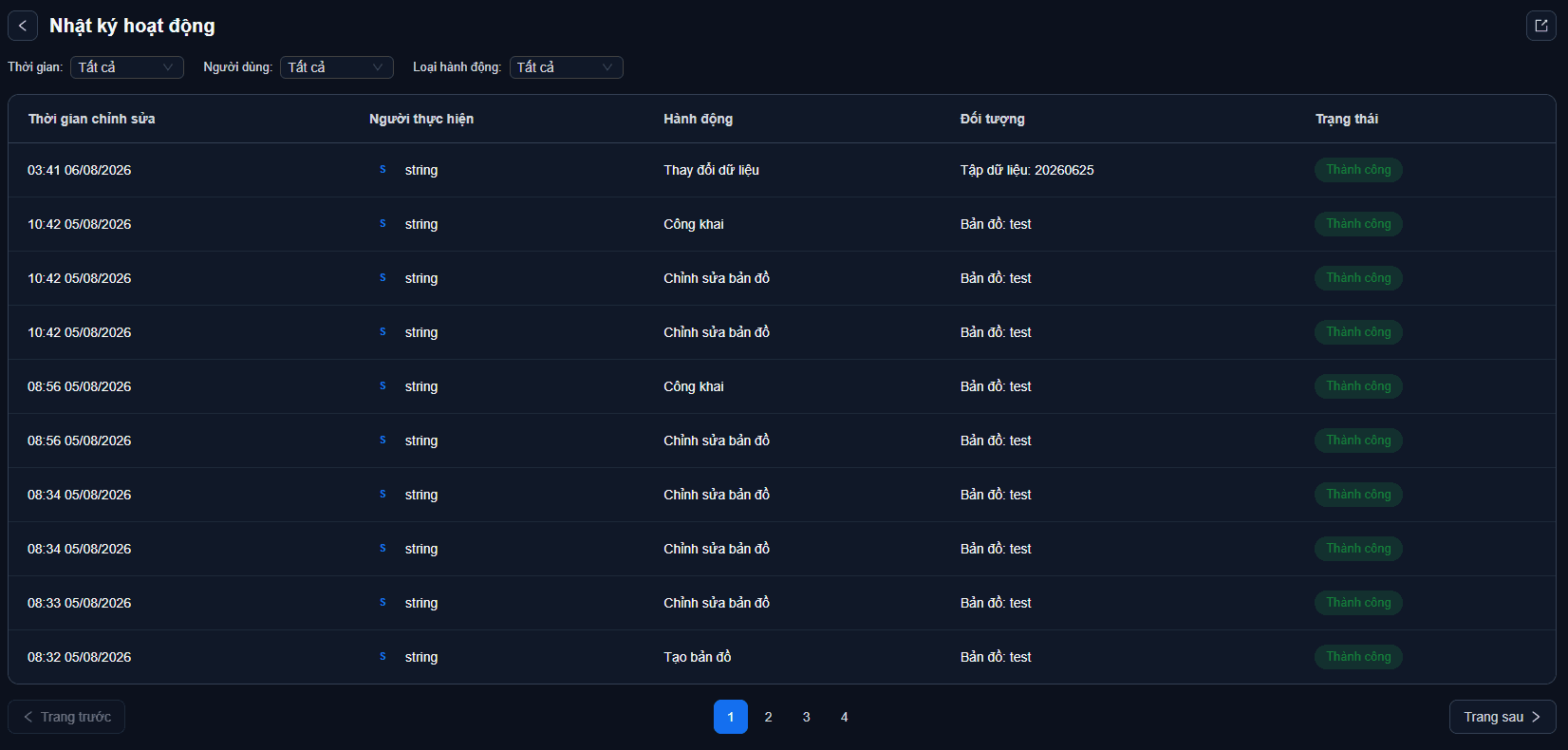
The table shows 10 rows per page; use the pager at the bottom to move on.
"Failed" rows are worth reading too
A failed action means somebody tried to do it and could not — perhaps out of permissions, bad data, or a connection dropping midway. Several failures in a row from the same person usually means they are stuck somewhere.
The actions that are recorded
| Group | Actions |
|---|---|
| Maps | Create map · Edit map · Delete map |
| Publishing | Publish · Unpublish |
| Datasets | Create dataset · Delete dataset |
| Data | Add data · Change data · Delete data |
| Structure | Add column · Edit column · Delete column |
| Permissions | Grant access |
Filtering to find things fast

Three filters sit above the table and can be combined:
| Filter | Options |
|---|---|
| Time | All · Today · Last 7 days · Last 30 days |
| User | All, or one specific person |
| Action type | All, or one of the types above |
The User list includes everyone who has ever been active in the account, not just those appearing on the page you are viewing.
Three common questions
- "Who deleted those stores yesterday?" → Time Today or Last 7 days + action type Delete data.
- "What changed on this map this month?" → Last 30 days + Edit map, then read the Target column.
- "What has the new hire been doing?" → pick their name under User and leave Time on All.
Exporting to CSV
Click the export icon in the top right to download the log.
A few things to know:
- The export follows the filters you currently have set, and takes every matching row — not just the 10 on the page you are viewing.
- One export is capped at 5,000 rows. Beyond that the system still exports the first batch and tells you how many remain — narrow the filters (splitting by time range, for example) and export again.
- The filename carries a timestamp:
nhat-ky-hoat-dong_20260806-1430.csv. - The file opens correctly in Excel with no extra steps.
The columns in the file match the screen: Time · Performed by · Action · Target · Status.
The log cannot be edited or deleted
It is a record for reference, so there is no way to edit or remove a row. For the same reason, do not treat the log as a backup: it tells you when data was deleted and by whom, but it cannot restore that data.
Next: What the metrics mean — read the numbers in your analytics correctly.