Domain management
Create coded-value sets (code → label) so data is picked from a list instead of typed by hand.
A domain is a predefined value set — each row pairs a code with a display label. When you assign a domain to a field, whoever enters data picks from a list instead of typing.
One set can serve many datasets: declare it once, reuse it everywhere.
Why use one
Free typing is where inconsistent data comes from. The same store type gets entered differently by different people — Dealer, dealer, DLR, *Dealer * (trailing space) — and the system treats those as four different values.
The damage shows up wherever values must match exactly:
- Icons per group — every spelling variant needs its own rule, and one you miss leaves those stores without an icon.
- Filtering and counting — reports split one group into several unrelated rows.
With a domain this cannot happen, because there is nowhere to type the wrong thing.
Opening Domain management
Left navigation bar → Data management → Domain management.
The screen has two columns: left the list of sets, right the values of the selected set.
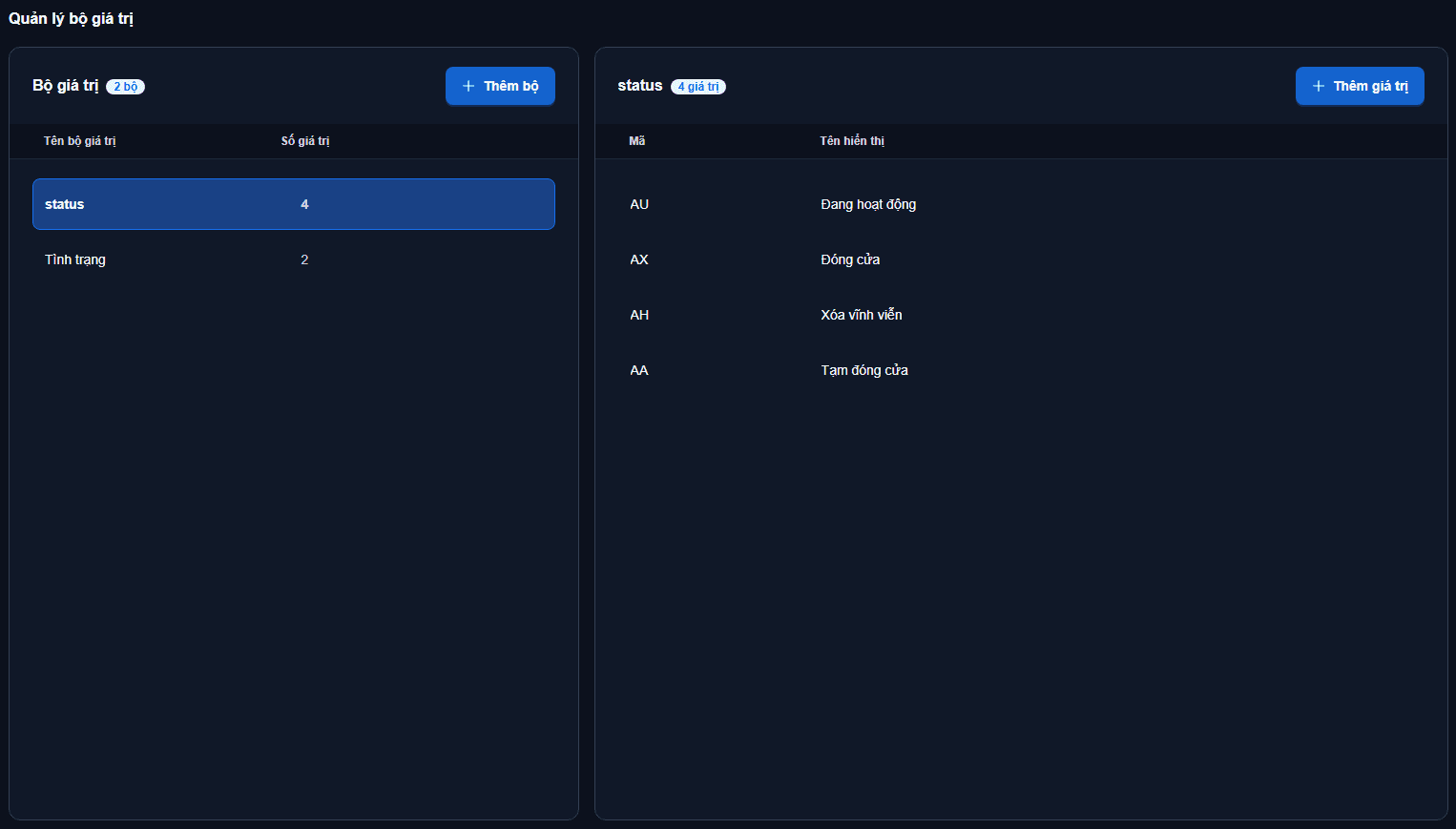
Creating a domain set
- Type a name into the New set name box at the top of the left column (for example Store type, Trading status).
- Click + or press Enter.
A new set always comes with one sample value
A domain set cannot be empty, so the system creates a key1 — Value 1 row for you. Edit that row into your first real value rather than leaving it as it is.
The set name is shown with its value count, for example Store type (5). Click the pencil icon to rename a set, the trash icon to delete the whole set.
Adding values to a set
Select a set on the left, then on the right:
- Enter the Code (key) — the value actually stored in the database.
- Enter the Display label — the text users see.
- Click Add.
| Code (key) | Display label |
|---|---|
flagship | Flagship store |
standard | Standard store |
kiosk | Small kiosk |
Each row has a pencil icon to edit and a trash icon to delete.
Choose codes you will never have to change
Display labels can change any time, but the code is what sits inside your data. Keep codes short, lowercase and space-free (flagship, kiosk) and leave them alone afterwards — if you want to call something differently, change the label.
Codes must be unique within a set
The system blocks duplicates case-insensitively — with Kiosk present you cannot add kiosk. The same code in two different sets is fine.
Using a domain on a field
Once the set exists, assign it to a field:
- Open the layer's data table and click the Settings icon.
- Click Add to create a new field.
- For Data type, choose Domain.
- Choose the domain set to use, then save.
See also: Managing structure.
Pick the set when you create the field
A Domain field must have a set chosen before it can be saved. And a field's data type cannot be changed after creation — to convert an existing text field to Domain you have to create a new field and re-enter the data.
Deleting a set or a value
Both ask for confirmation first.
The system does not check where a set is being used
This page gives no warning when the domain set you are about to delete is still used by a field. Before deleting, check your datasets for Domain-type fields yourself. Likewise, deleting a value from a set does not update the records already carrying that code.
Next: Managing structure — add, edit, delete and reorder fields.