Data table
View and edit your store data as a table.
The data table shows every record of a layer as rows and columns — handy for reviewing, looking things up and cross-checking, instead of clicking each point on the map.
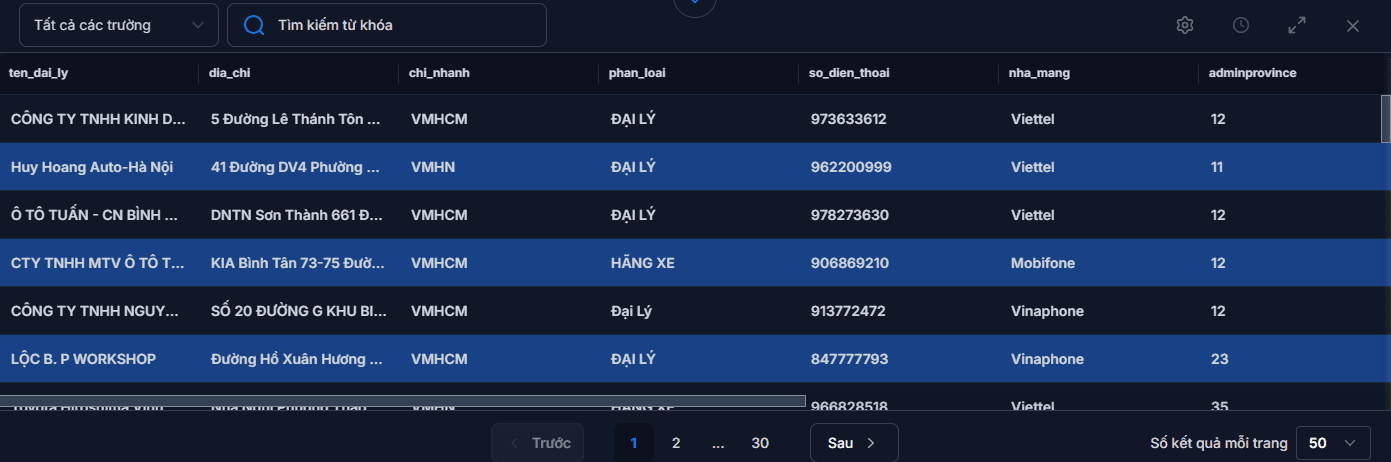
Opening the data table
Two ways:
- Click the Data button on the floating toolbar at the top-centre of the map area.
- Or open a layer's three-dot menu in the Legend and choose View table.
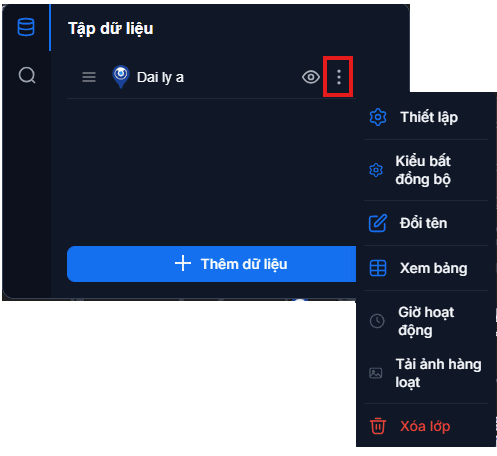
Map with several layers?
When a map has two or more data layers, clicking Data opens a list so you can choose which layer to view, instead of opening one straight away.
Searching the data
Click the search box and type what you are looking for. Matching rows are filtered in the table below straight away.
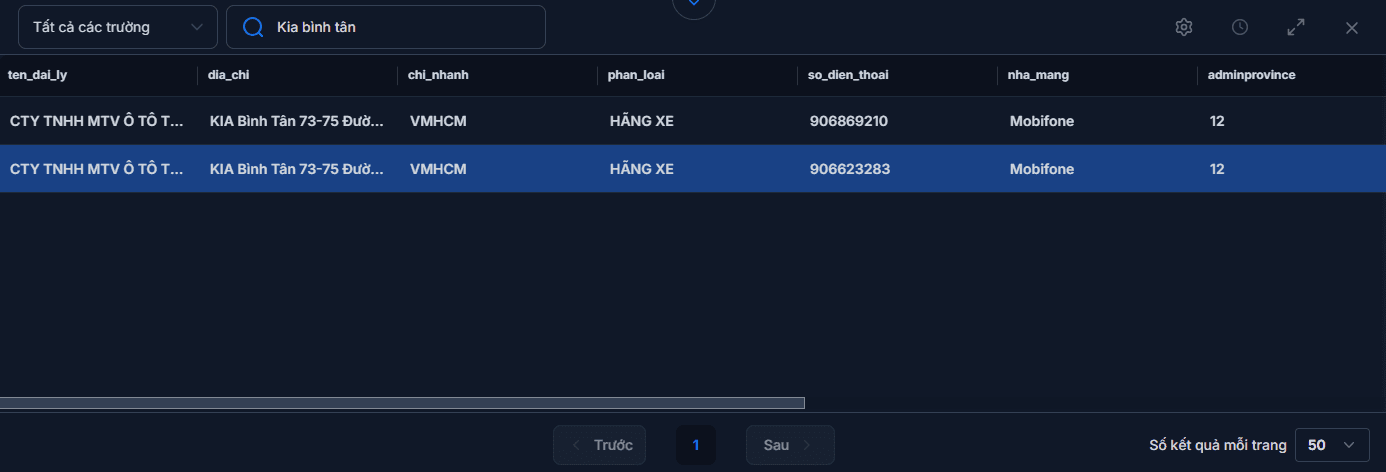
Use it to review data after an upload
After each new file upload, opening the data table and skimming a few rows is the fastest way to spot broken Vietnamese characters, shifted columns or blank values.
The columns shown in the table
Column headers use the display label you set for each field. If the table is showing hard-to-read raw column names (ten_ch, dia_chi), set proper labels in Managing structure — the column order is adjustable there too.
Editing data
To add, edit or delete a specific store, see Managing stores.
Next: Managing structure — set labels, add and reorder your data columns.