Previewing your map
Check how the embedded map looks before pasting it onto your website.
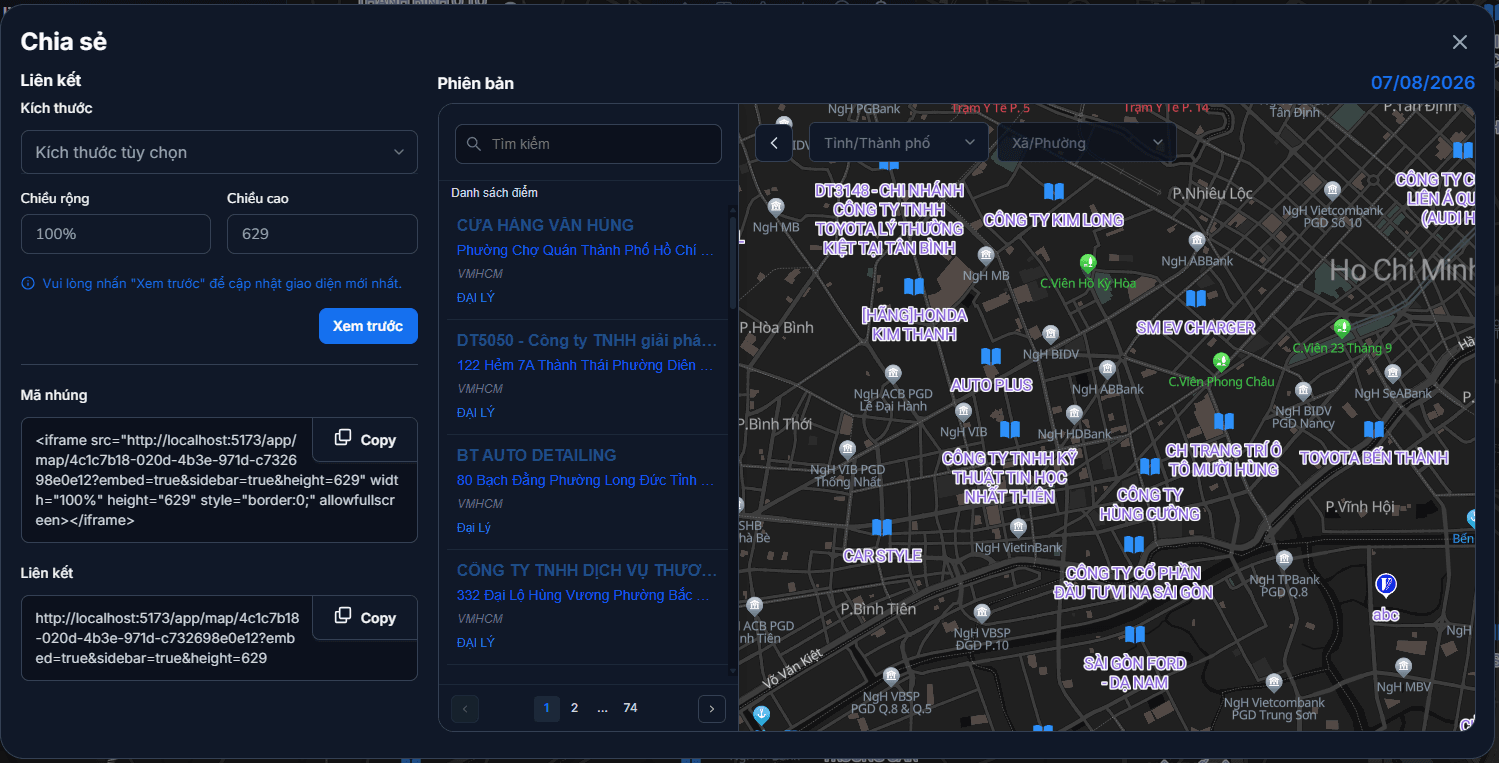
Before pasting the embed code onto your website, it is worth seeing how the map looks at the exact size you will use. The preview tool sits inside the Share panel.
Opening the preview
- Open the map and click Share on the toolbar.
- The Share panel appears in two columns:
- Left — Link: adjust the size, copy the embed code and the link.
- Right — Version: the live map, scaled down into a frame.
Publish first
The Share button only appears for a published map. Before publishing there is nothing to preview — see Publishing & sharing.
Choose a size, then take a look
In the left column, set the embed frame size in one of two ways:
- Pick a preset from the Size box: Small 1024×600 · Medium 1280×720 · Large 100%×800.
- Or type your own Width and Height. Width accepts both
%(for example100%) and pixels.
Then click Preview. A large window opens showing the map at exactly the size you set — the closest thing to what customers will see on your website.
Nothing applies until you click Preview
Typing into the Width / Height boxes does nothing on its own. The preview frame and the embed code only pick up the new size after you click Preview. Copy the embed code straight after typing without clicking, and you will paste an old size onto your website.
What the preview actually shows
The preview loads the published map itself — the same URL your embed code points at. So it faithfully reflects the data, icons, popups and list panel customers are seeing right now.
Which brings one thing worth remembering:
This is not a private draft
The preview shows the published version, not edits you have made but not published. In other words, by the time you can see a change in this frame, your customers can see it too.
To be sure before going public, check carefully in the map editor — popups, labels, icons, data — and only then publish.
The safety net before publishing
There is one built-in check: if a layer has no display configuration (popup / list), the Publish dialog blocks you and names the layer that is missing one, with a Set up button that takes you straight there.
That is a good reason not to skip the display setup: a public map where clicking a store shows nothing sends customers away immediately. See Publishing & sharing.
Copying once you are happy
Just below the size controls, the left column has two boxes with Copy buttons:
| Box | Use it for |
|---|---|
| Embed code | Putting the map into your web page — see Embedding into a website |
| Link | Sending it straight to customers by message, email or social post |
Next: Embedding into a website — paste the embed code into your web page.