Embedding into a website
Get the iframe code to embed your map into your own website.
Besides sending a link, you can embed the map directly into your website. Customers find stores right on your page instead of switching to another tab.
Publish first
Only a published map can be embedded. If you have not published yet, see Publishing & sharing first.
Getting the embed code
Open the map's share panel and copy the embed code (iframe) or the public link.
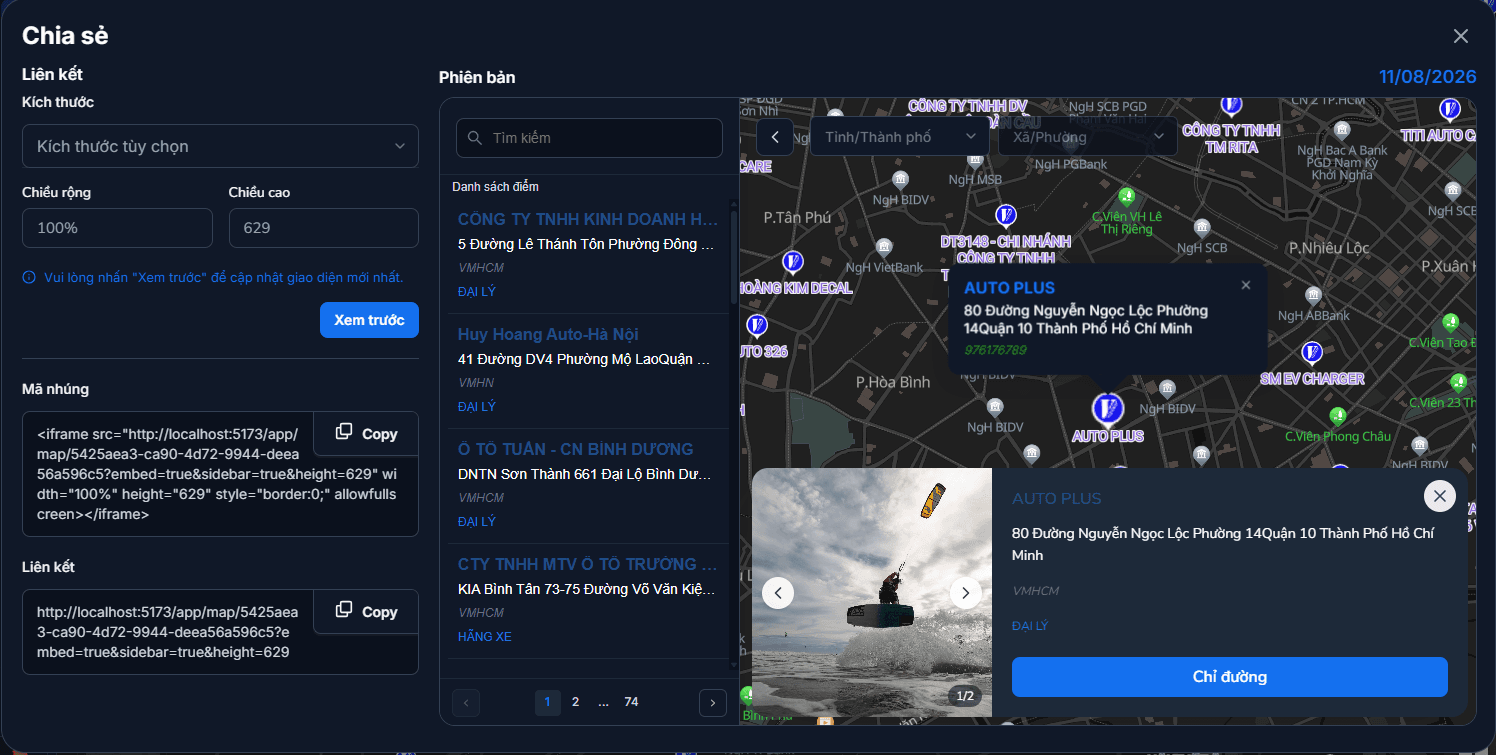
Pasting it into your website
Paste the copied snippet where you want the map to appear in your HTML page:
<iframe
  src="YOUR_MAP_URL"
  width="100%"
  height="600"
  style="border: 0"
  allowfullscreen
  loading="lazy"
></iframe>
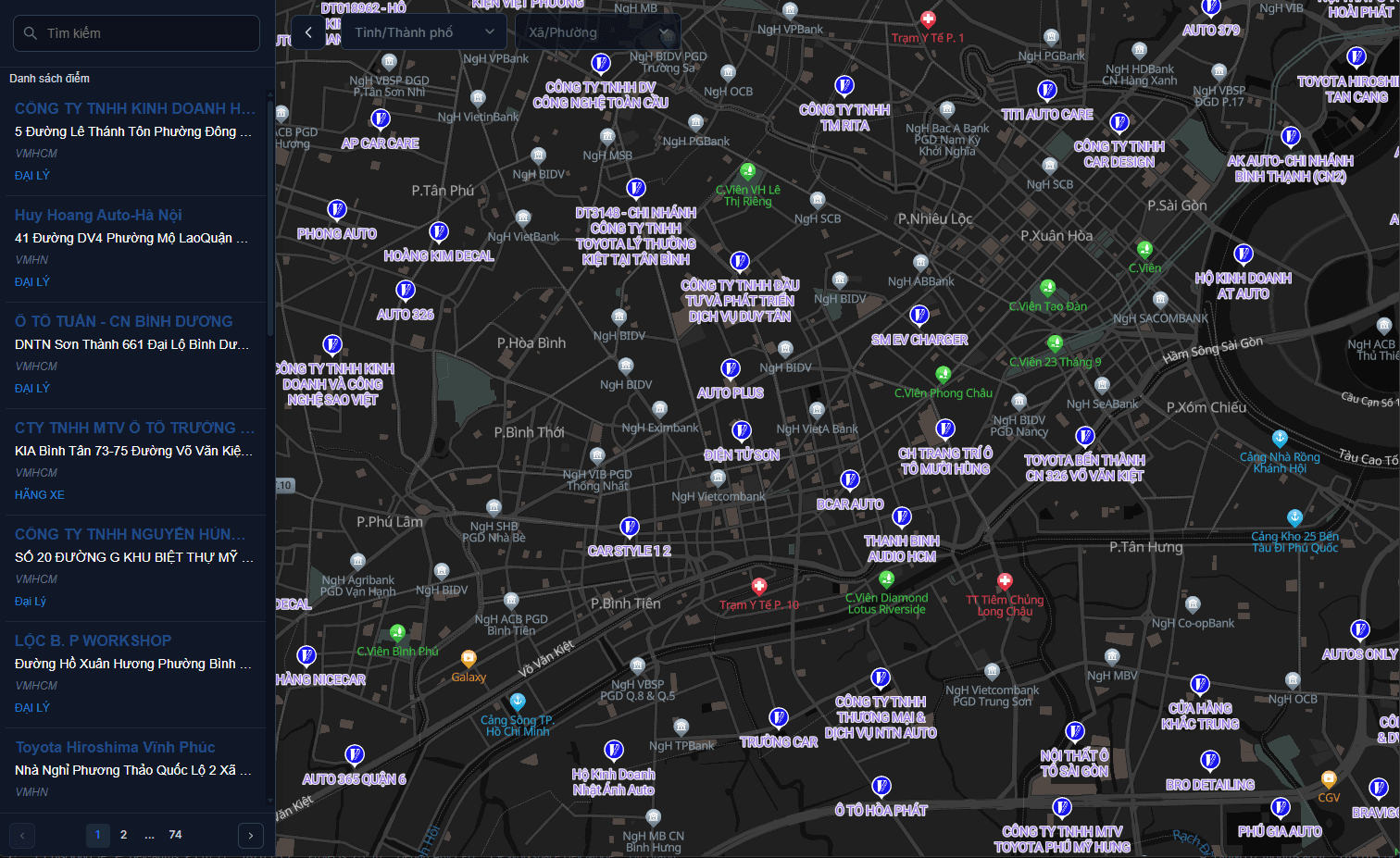
The map then renders inside your page:
Fitting every screen
Set width="100%" and a fixed height (600–700px works well) so the map adapts to the page width and looks right on phones too.
Display options
The embed code from the share panel already includes the full set: the store list panel, the map controls and the area filter. To trim it down, edit the URL by hand in the snippet — append parameters after ?embed=true, separated by &:
| Add to the URL | Result |
|---|---|
&sidebar=false | Drops the store list panel — just the bare map, customers click points directly to see details |
&controls=false | Drops the zoom / fullscreen buttons. Customers can still pan and zoom with mouse or fingers |
&areaOptions=false | Drops the administrative-area filter |
For example, a bare map with no list panel:
<iframe src="YOUR_MAP_URL&sidebar=false" width="100%" height="600" style="border: 0" allowfullscreen></iframe>Remove the parameter to get the default back
All three parameters only take effect when written explicitly as =false. Delete the parameter and that part comes back.
Turning off the list also kills the Demand report
The search box lives inside the list panel. Turn the panel off and customers have nowhere to type, so the whole Demand analysis report will be empty — not a bug, simply no input data.
The other reports (store views, direction clicks, area analysis) keep working, because they count actions on the map rather than searches.
If you embed several maps on several pages with different settings, their numbers are added together in the map's reports — they are not broken down per web page.
Embedding with a site builder
If your website runs on WordPress, Wix, Haravan, Shopify... look for a Custom HTML / Embed code block and paste the iframe above into it.
Updating content after embedding
An embed always shows the latest data — edits to stores, images and hours appear straight away, with nothing else to do. Appearance changes (icons, colours, labels, popups, basemap) need a republish.
In neither case do you have to change the embed code on your website.
Next: Previewing your map — check the map before putting it on your site.